IntroductionDashboard overviewBasic flowFirewall settingsManaging API keysManaging users
Configuration
Account onboardingSetupPolicyNotification groupsAdd a new notification groupDelete notification groupTagsNotification groups
AutoBackup sends notifications to inform about performed backup, replication and retention operations. User can receive notifications through the following notification channels:
- Slack
- PagerDuty
Add a new notification group
- Choose "Settings" from the navigation bar.
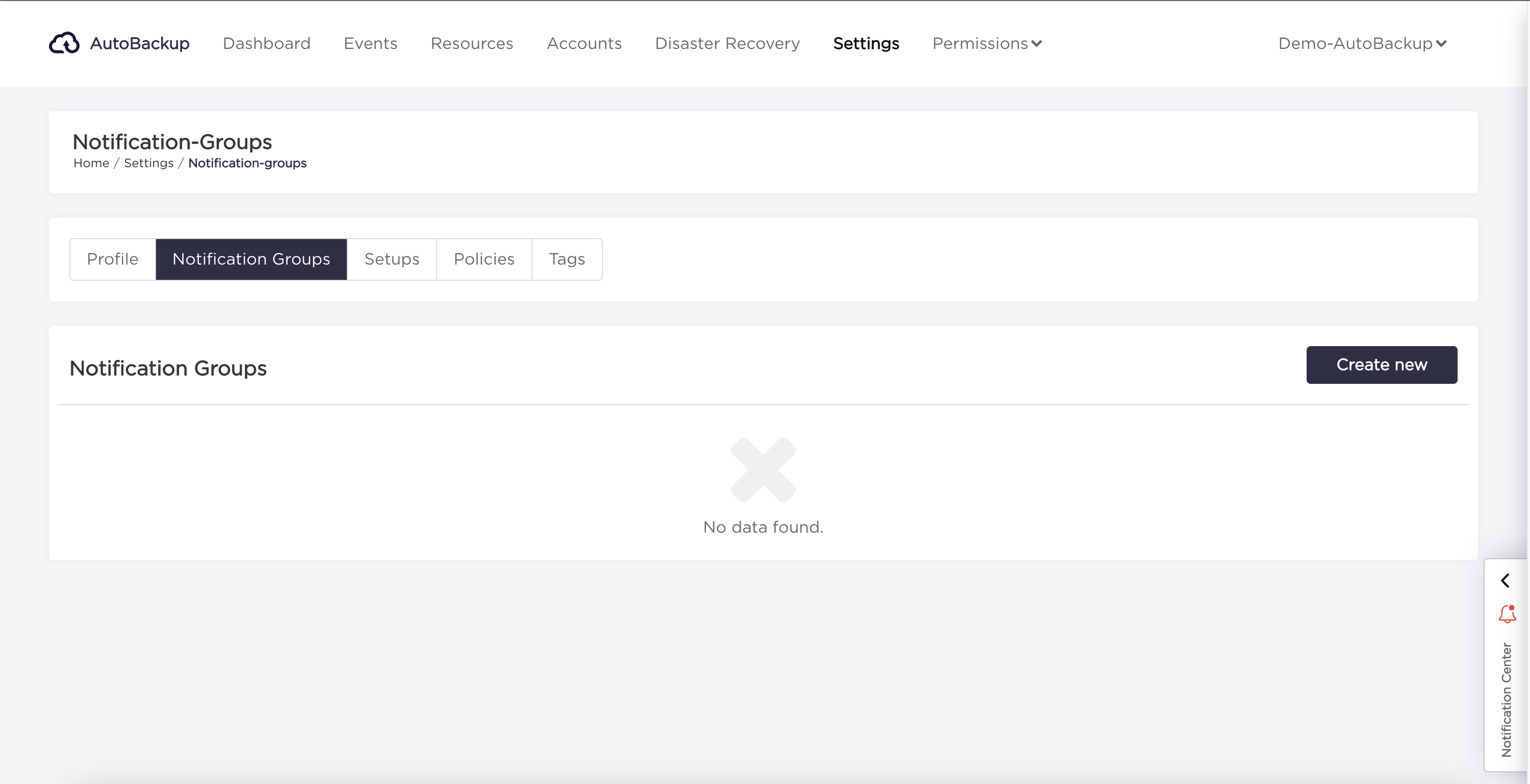
- Choose "Notification Groups" tab and click "Create new" button.
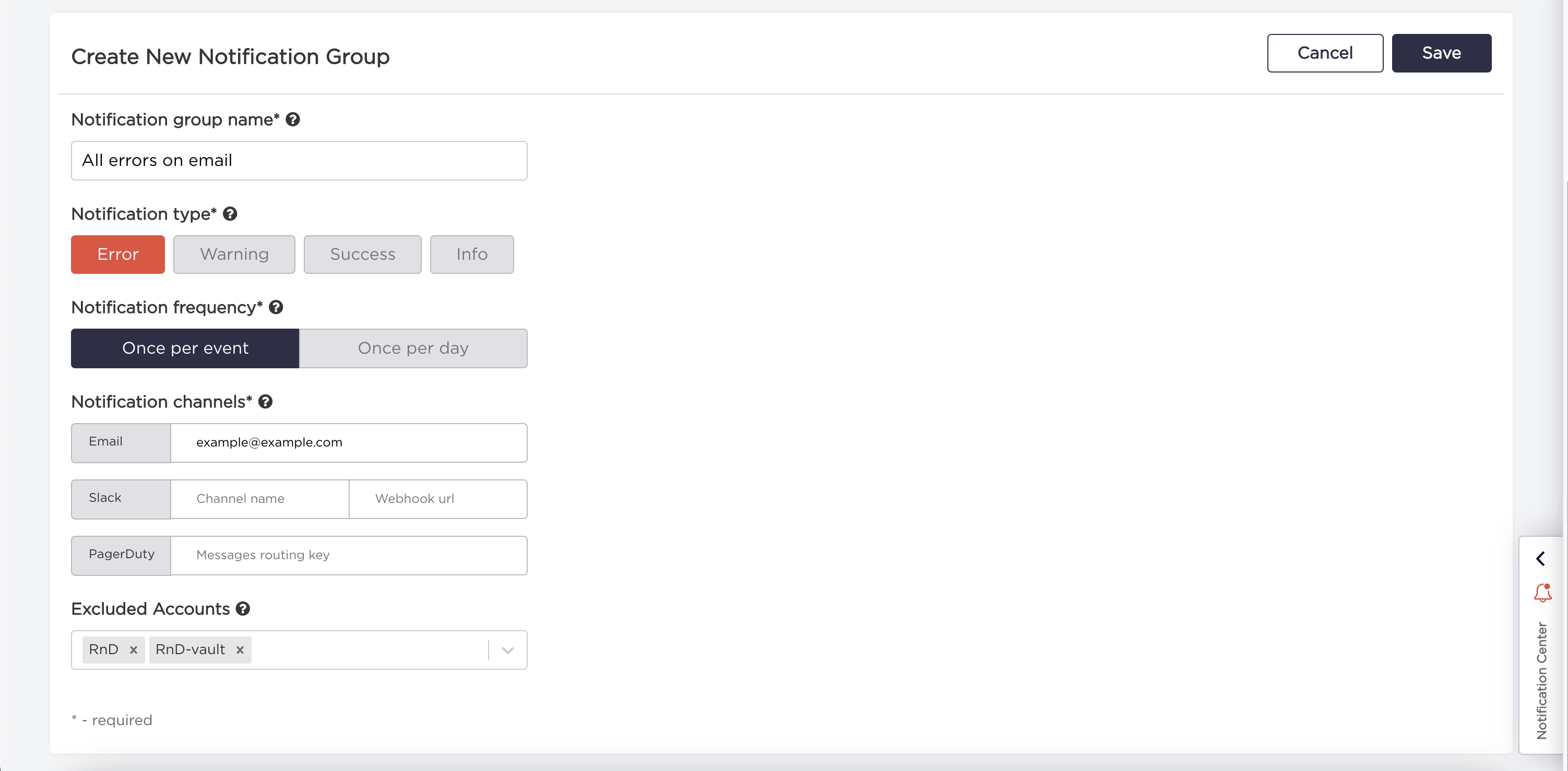
- Enter all required fields to the notification group form and click "Save" button.
| Property | Required | Description |
|---|---|---|
| Notification group name | yes | Custom name of notification group. |
| Notification type | yes (at least one) | Type of event after which user will be notified. |
| Notification frequency | yes | How often notifications should be sent. |
| Notification channels | yes (at least one) | Which channels should be used to inform user about an event. |
| Email address | ||
| - Slack channel name | Name of the Slack channel | |
| - Slack webhook URL | read more: Slack webhook | |
| - PagerDuty routing key | read more: PagerDuty | |
| Excluded accounts | no | List of accounts for which notification will not be sent. |
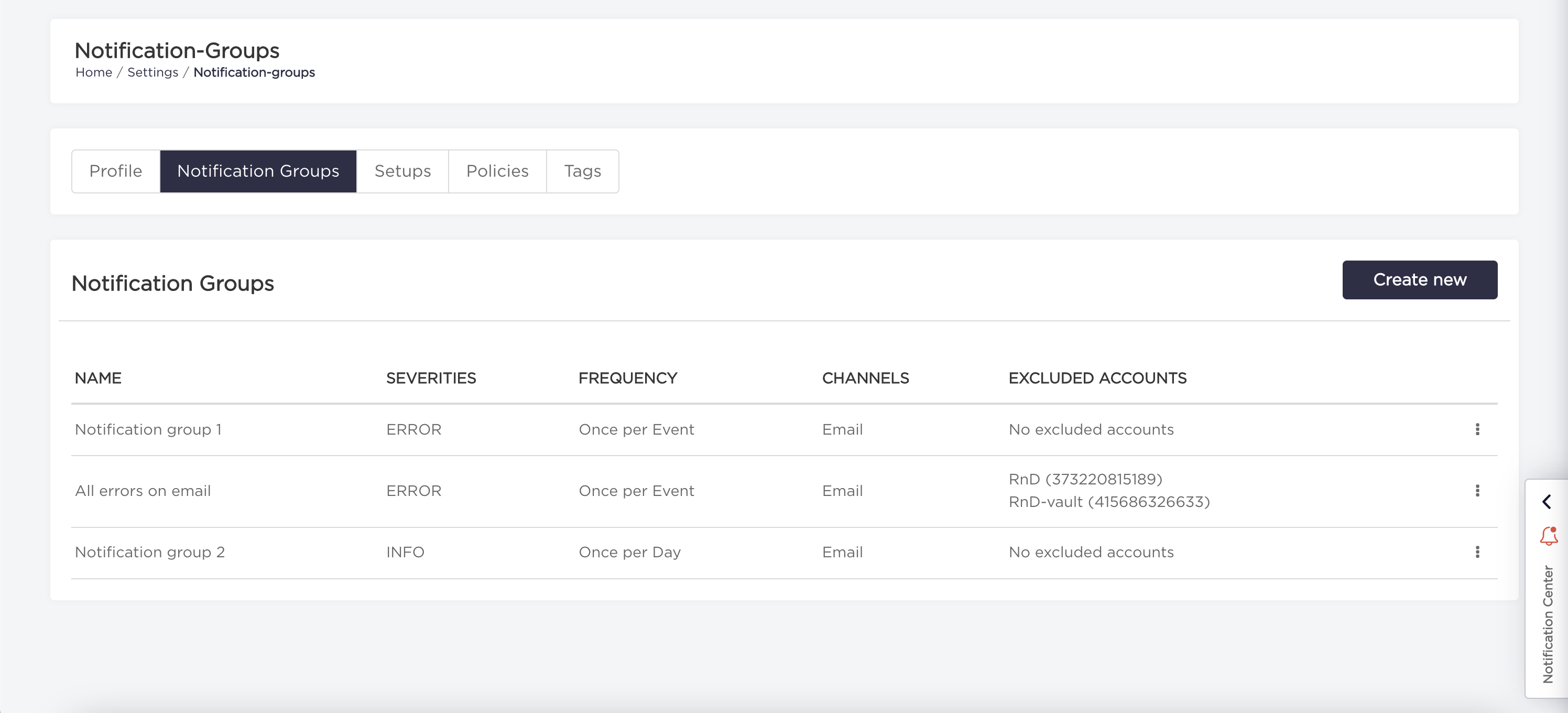
- The new notification group should be now visible on notification groups list.
Delete notification group
- Choose "Settings" from the navigation bar.
- Choose "Notification Groups" tab.
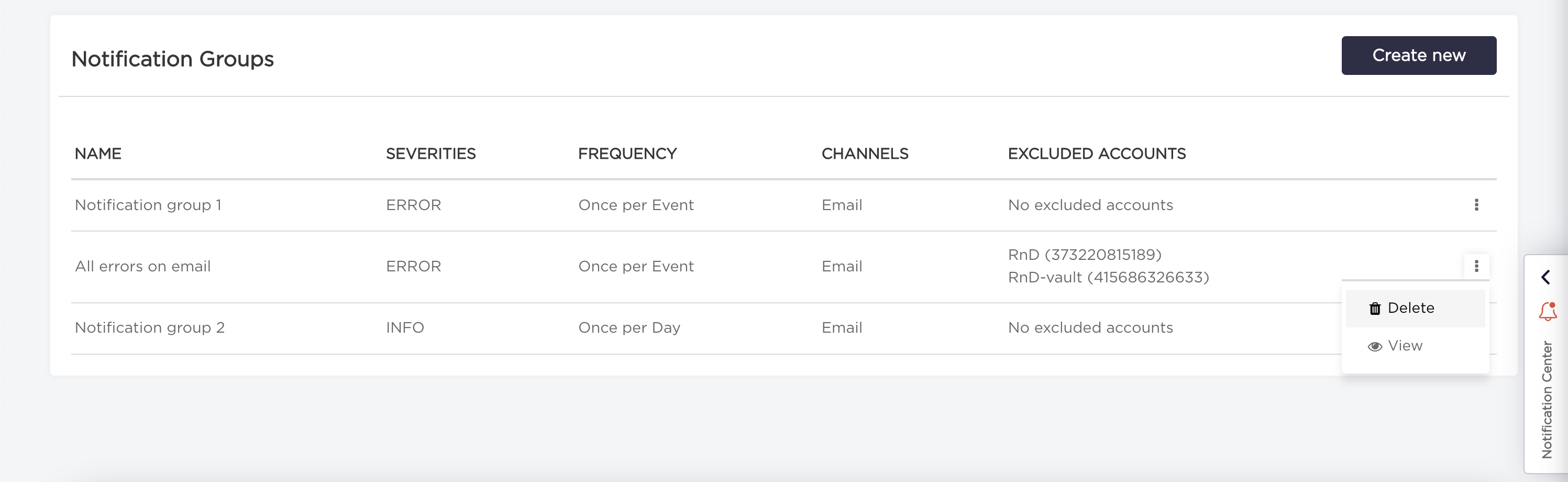
- Click on "three dots" on the right side of the notification group you want to delete, and select "Delete" option.
- Click on the "Delete" button on the confirmation window.
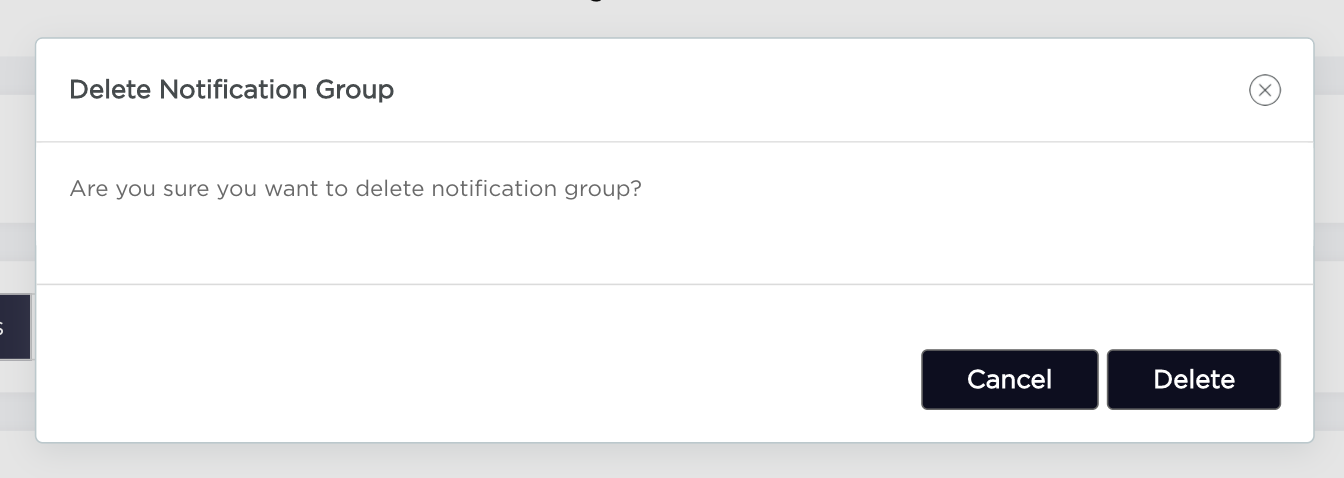
- The notification group should disappear from notification groups list.