Managing API keys
AutoBackup allows Users to add new API keys (which allow automation using GraphQL API) and grant permissions to them.
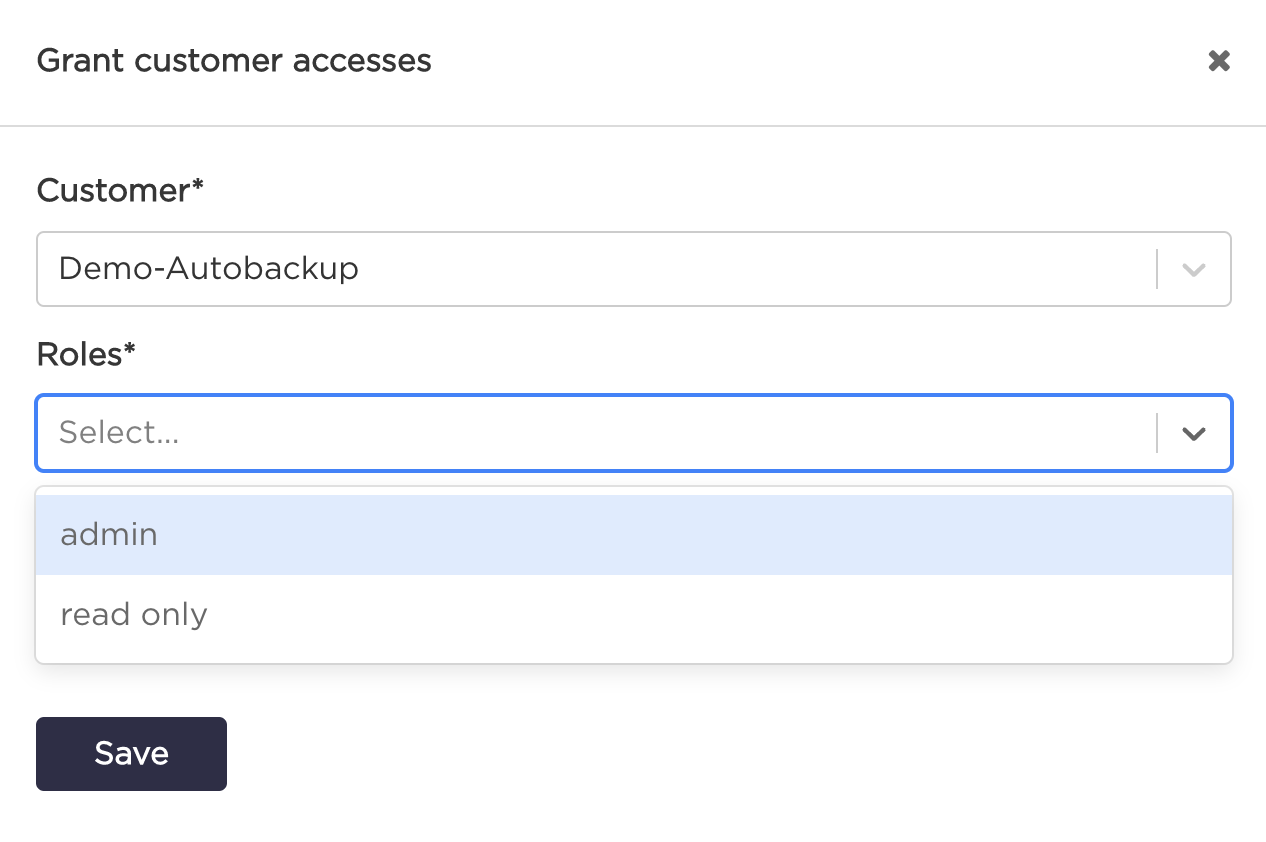
Granting permissions is done by attaching predefined roles (READ ONLY and ADMIN) to selected API key.

Available roles
- READ ONLY - allows to read all data for given customer,
- ADMIN - same privileges as READ ONLY and allows to create, update and delete resources (accounts, policies, setups etc.).
Adding an API key
Click the "Create an API key" button.

Provide alias and click the "Create" button.
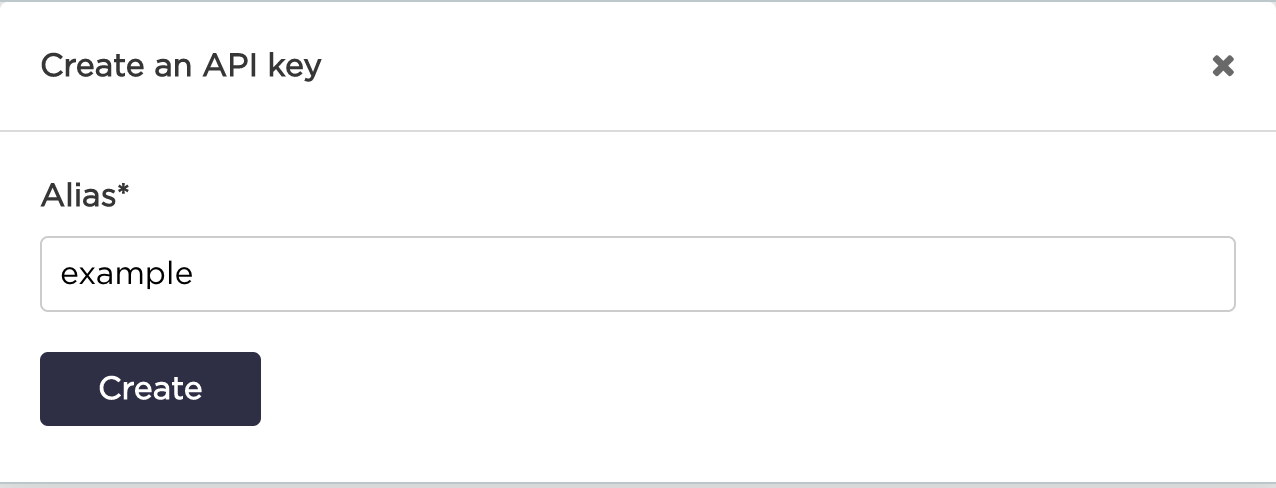
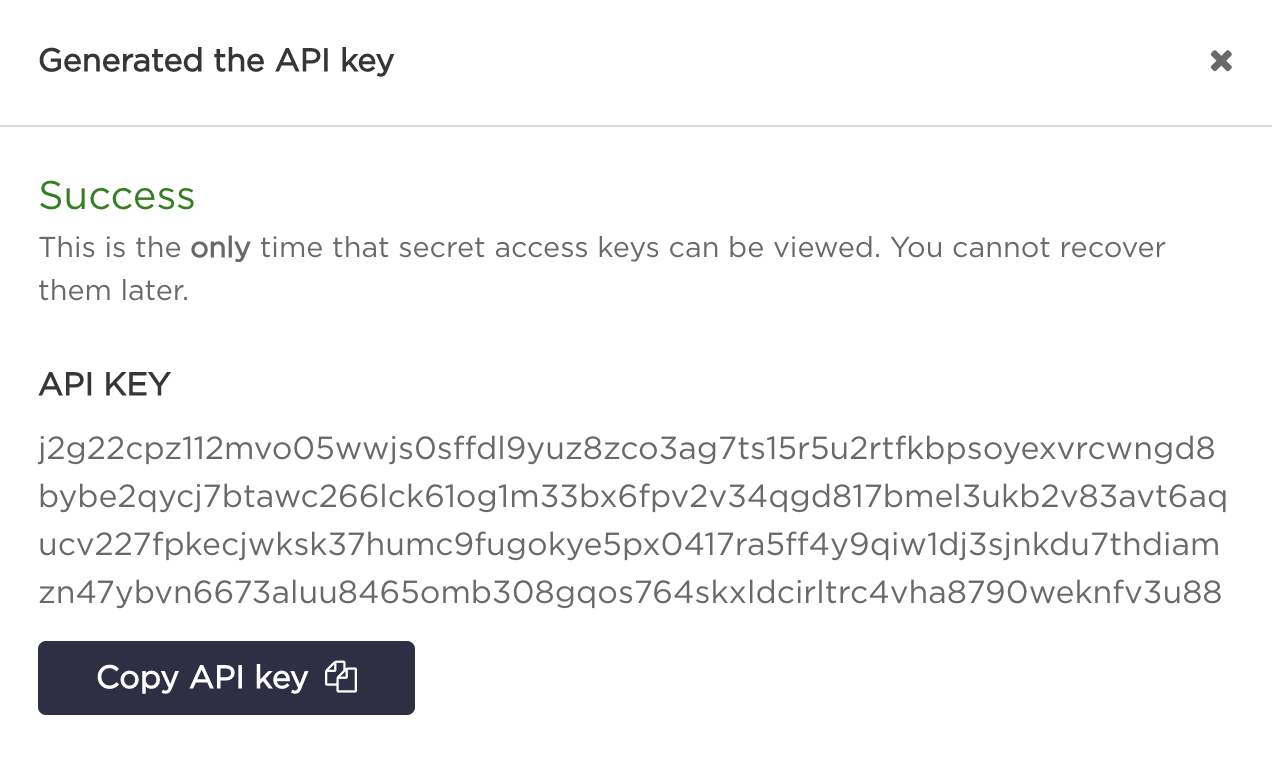
Copy the API key.
Granting permissions
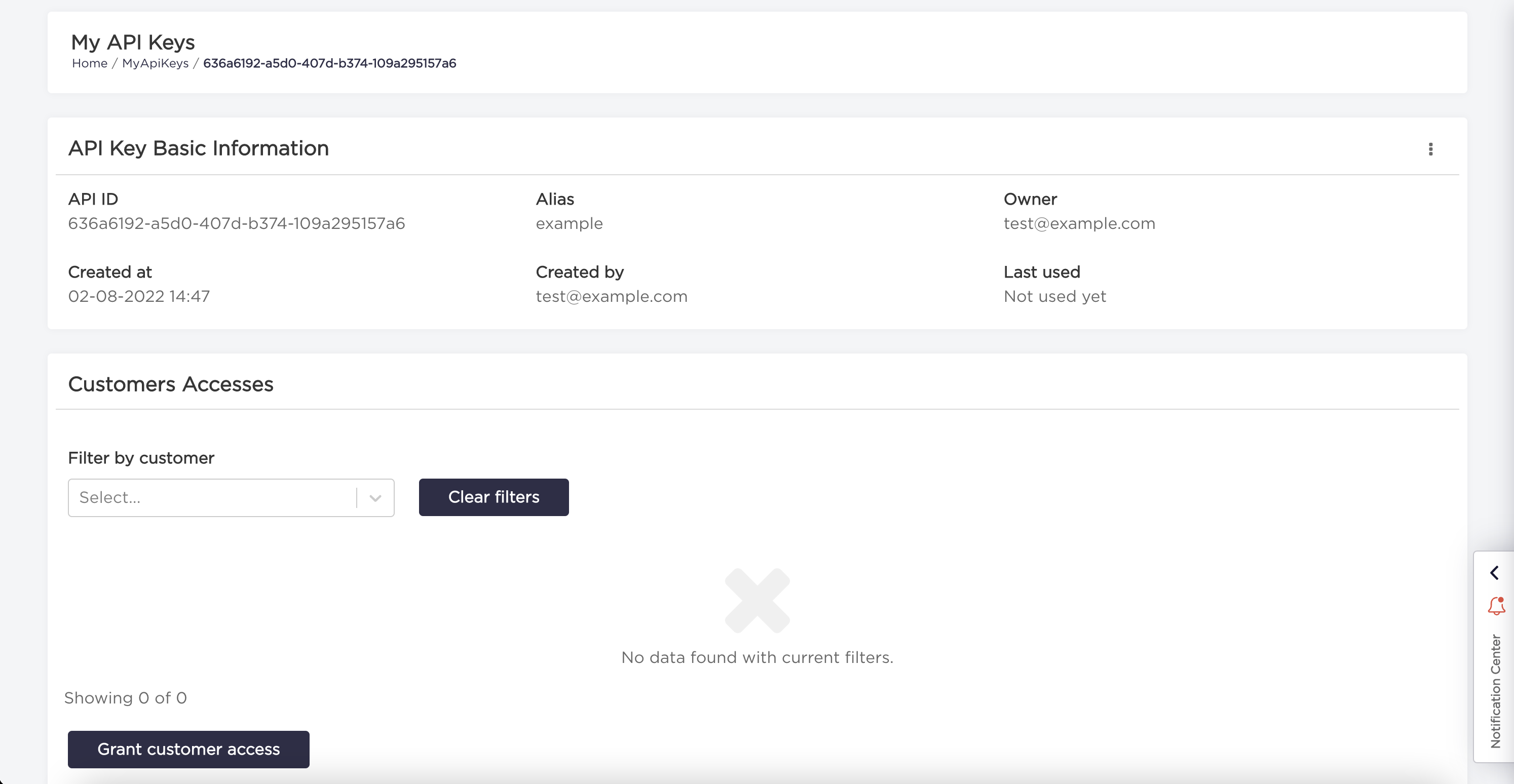
Select an API key and click the "Grant customer access" button.
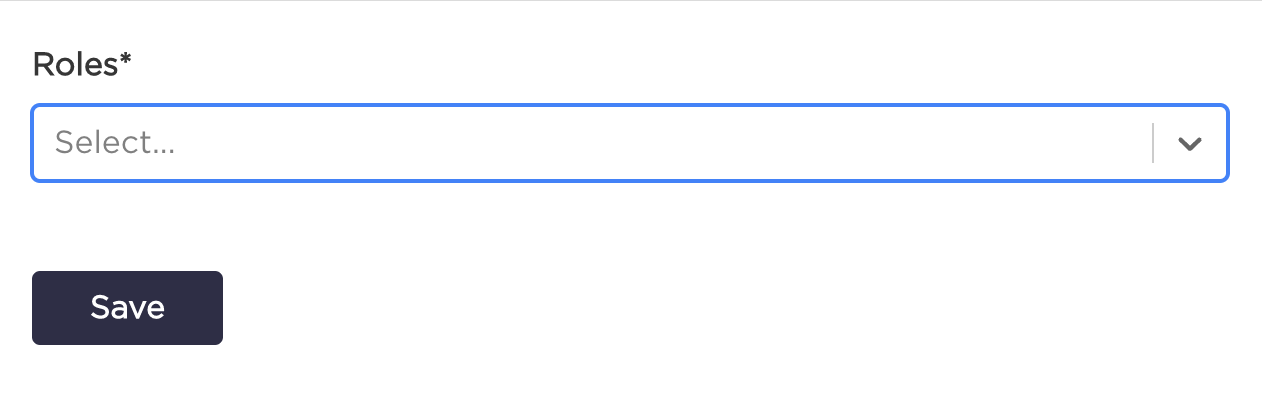
Select customer and roles from dropdowns and click "Save" button.
Removing permissions
Click the "Pencil" button.
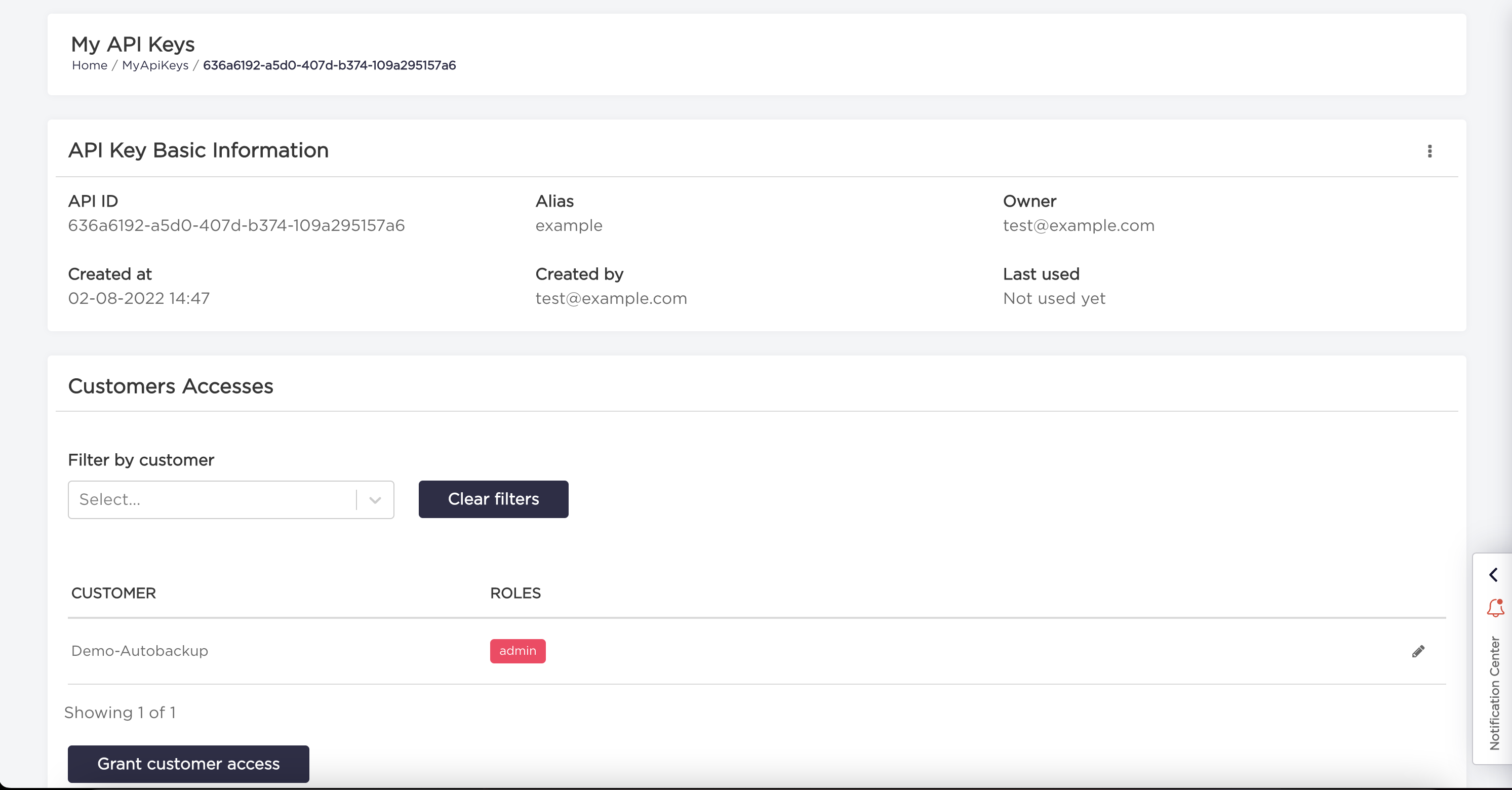
Click "Cross" to remove customer role from an API key.
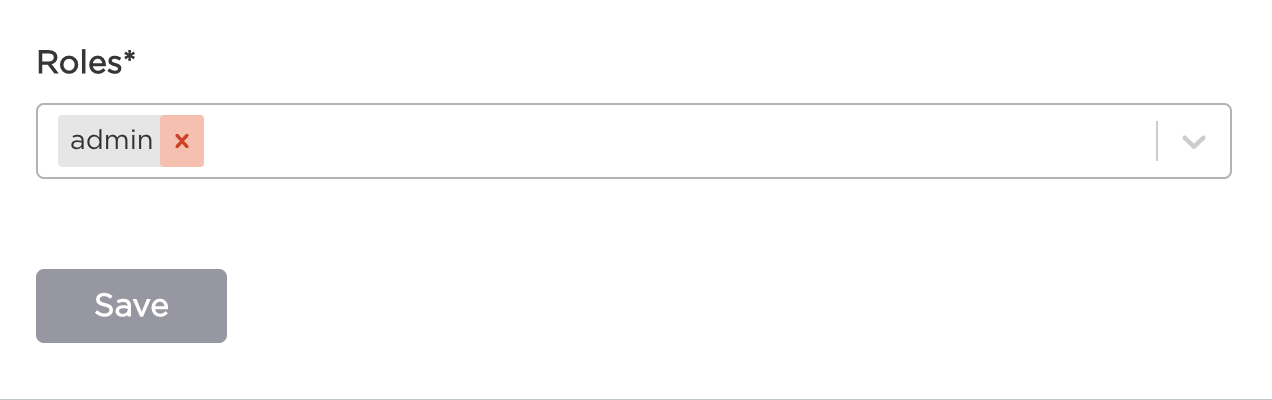
Click "Save" button.
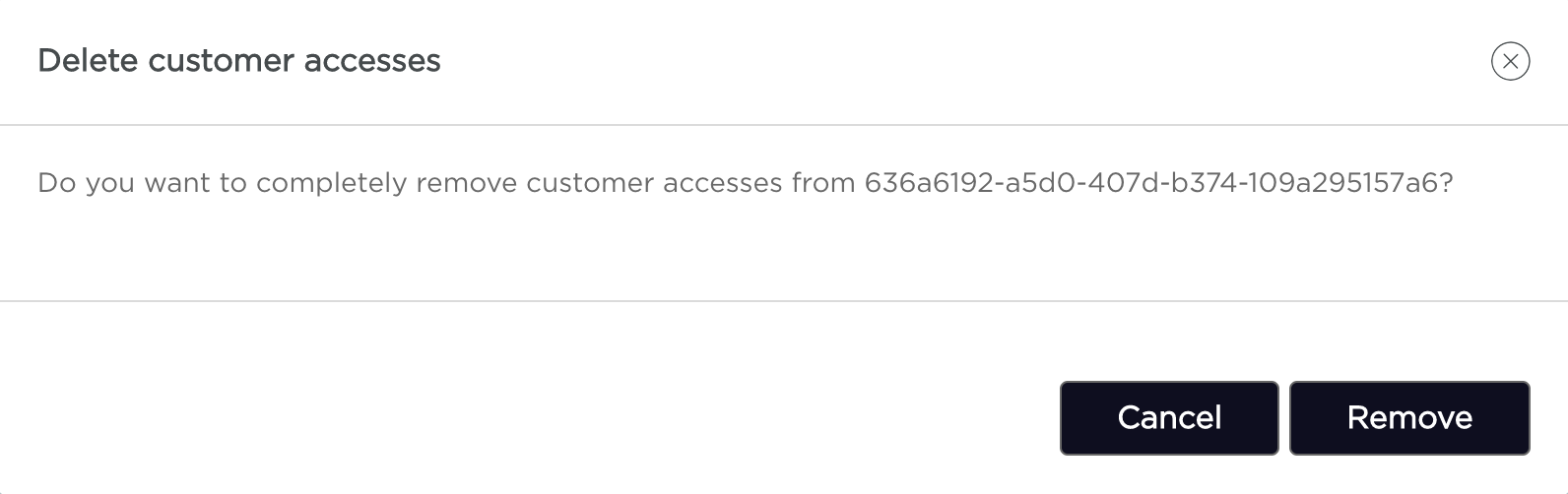
Confirm action by clicking "Remove" button.
Deleting an API key
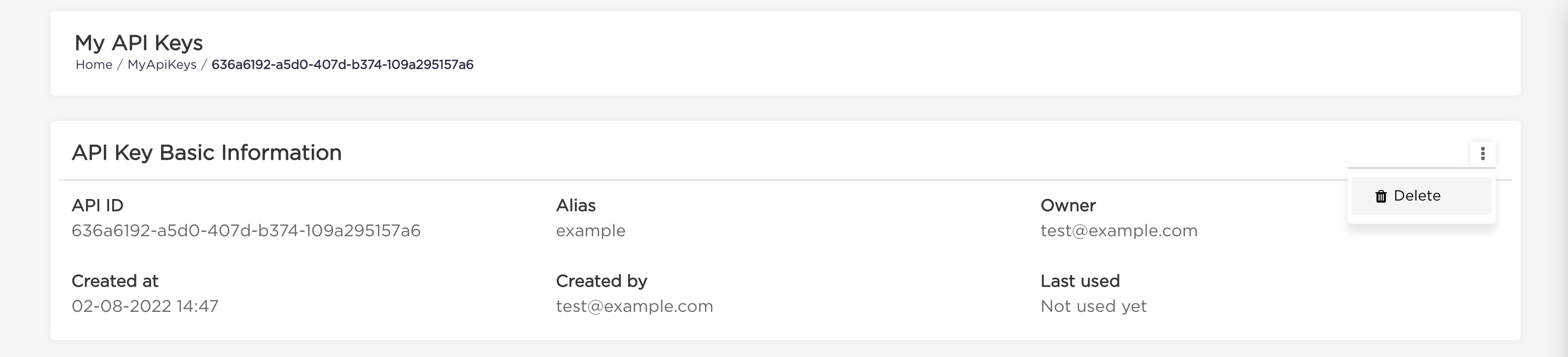
Choose an API key and click "Delete" button from "Three dots".
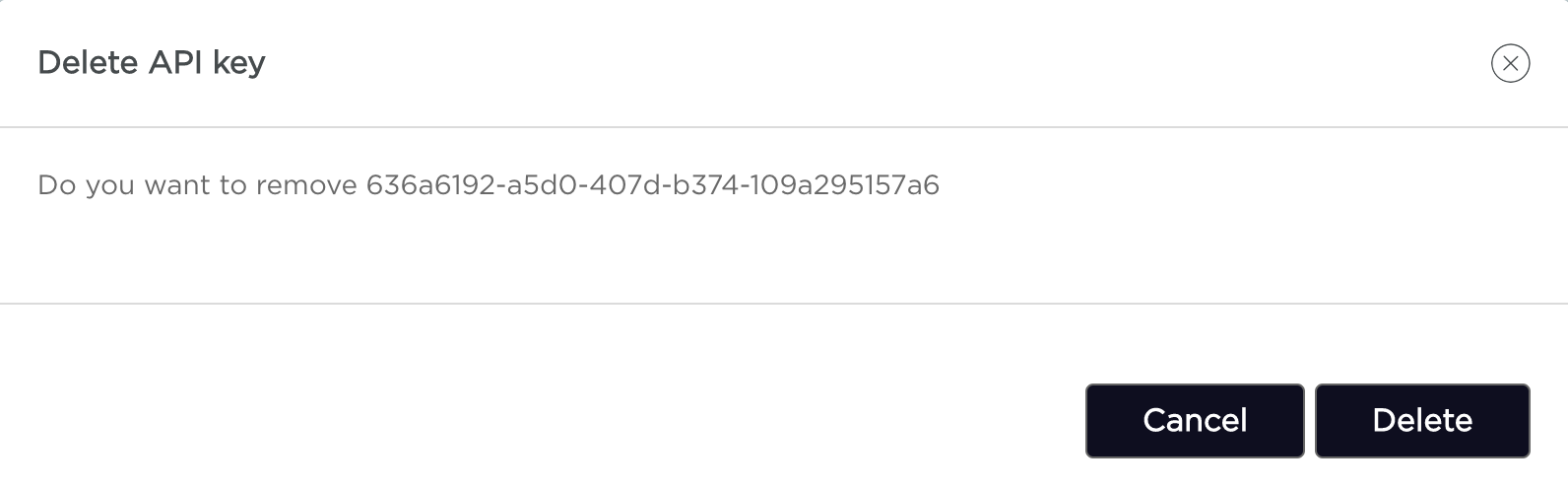
Confirm action by clicking "Delete" button.
Delay of the permissions changes
The important thing to remember is that the changes in the permissions made by the user don't take effect immediately. Usually, it takes up to 5 minutes for the new permissions to apply due to the asynchronous nature of the RBAC rules evaluation.